STEP-BY-STEP DEVICE SETUP

IPTV Installation Guide

Set up your streaming service on Windows, Mac, Firestick, Samsung, LG, Formuler, Android and iOS devices with straightforward step-by-step instructions.

Set Up Your Streaming Device

Choose your device below to view the relevant installation instructions. Each section walks you through the main setup process.

Install on Windows or Mac

Follow the instructions below to install the supported player and connect it using the account details supplied with your subscription.

STEP 1

For Windows: Download IPTV Smarters for Windows and install the application.

For Mac: Download IPTV Smarters for Mac and install the application.

STEP 2

Open the application and sign in using the username, password and server information supplied with your subscription.

Getting started:

When you launch the application for the first time, review the Terms of Use and select Accept.

Choose a Setup Method

Depending on the information supplied by your provider, you can configure the application using either an Xtream Codes API or an M3U playlist.

  1. Setup via Xtream Codes API
  2. Setup via M3U Playlist

Setup via Xtream Codes API

Open the application and select Add User, followed by Login with Xtream Codes API.

STEP 1

Select Add User and choose Login with Xtream Codes API.
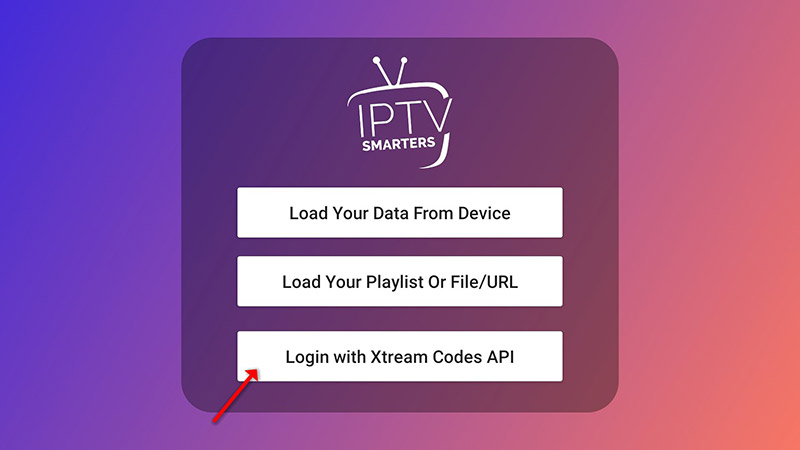
IPTV Smarters add user screen
STEP 2

Enter a profile name followed by your username, password and server URL.

Select Add User to continue.
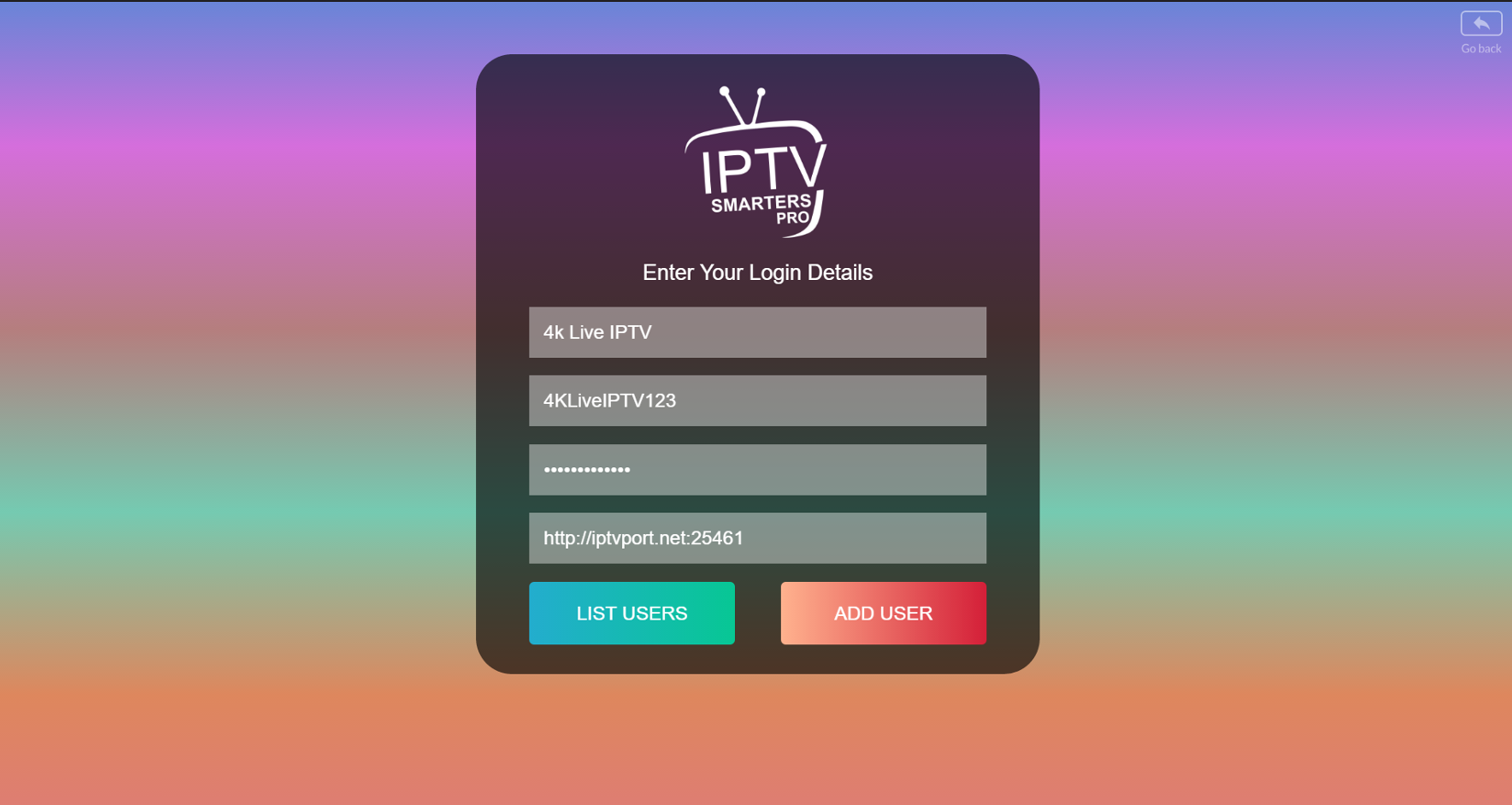
IPTV Smarters login details
STEP 3

Allow the application a few moments to load your account information.
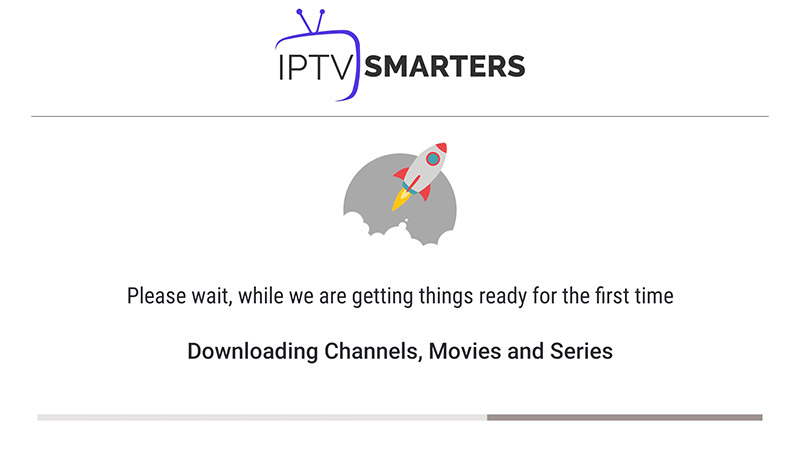
IPTV Smarters loading screen
STEP 4

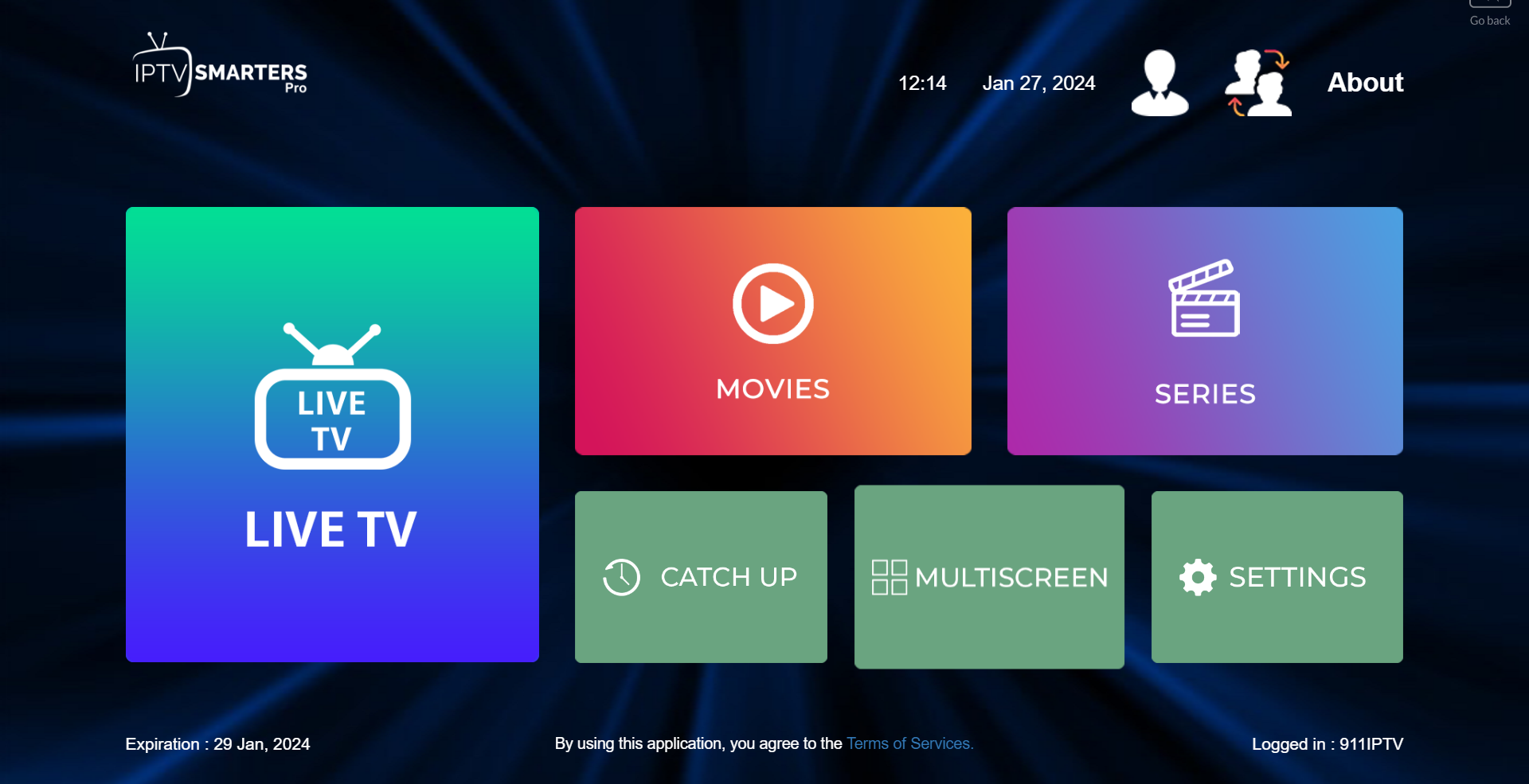
Select the Live TV section.

IPTV Smarters Live TV section
STEP 5

Choose the channel category you want to browse.
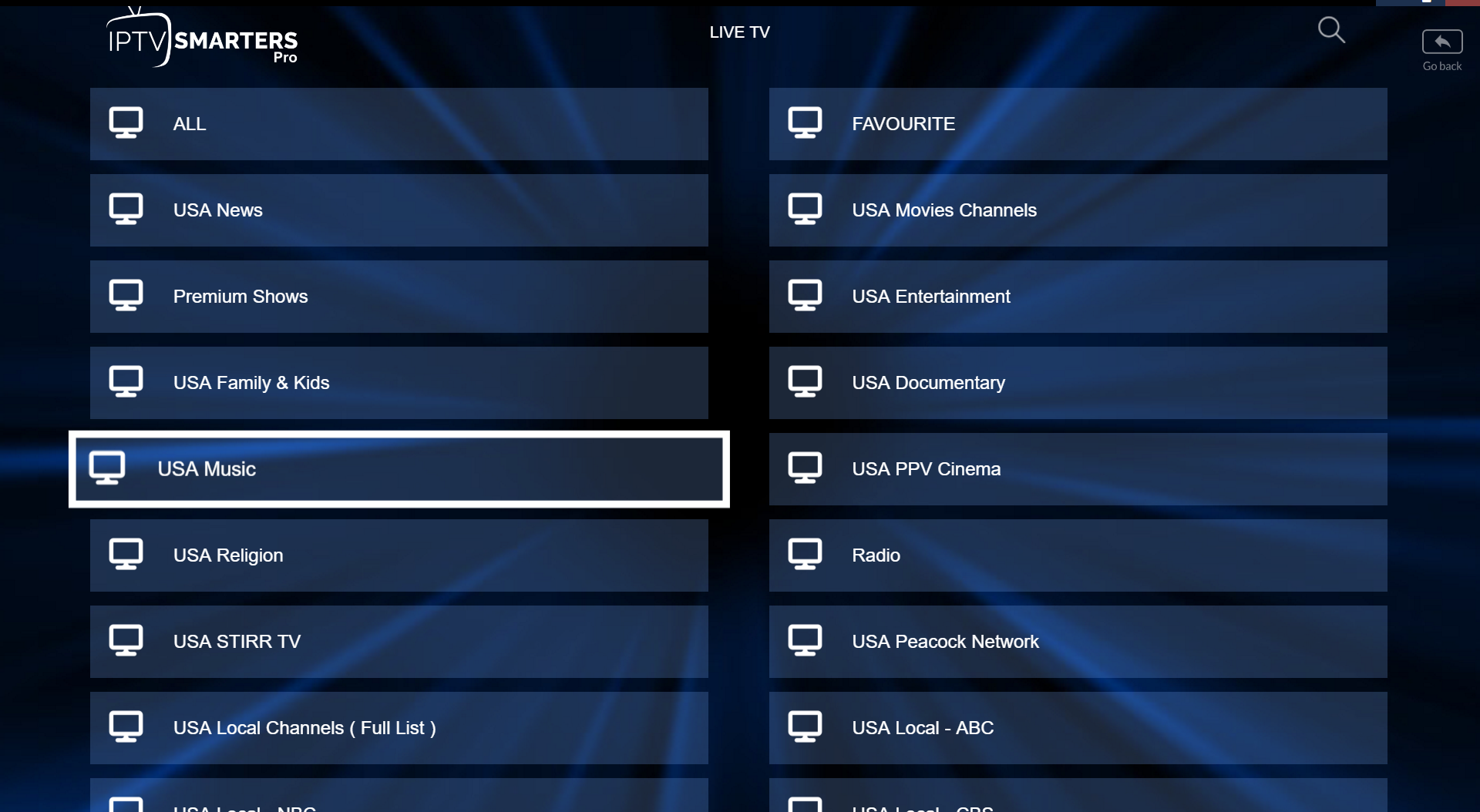
IPTV Smarters channel groups
STEP 6

Select a channel and expand the player to full screen when required.
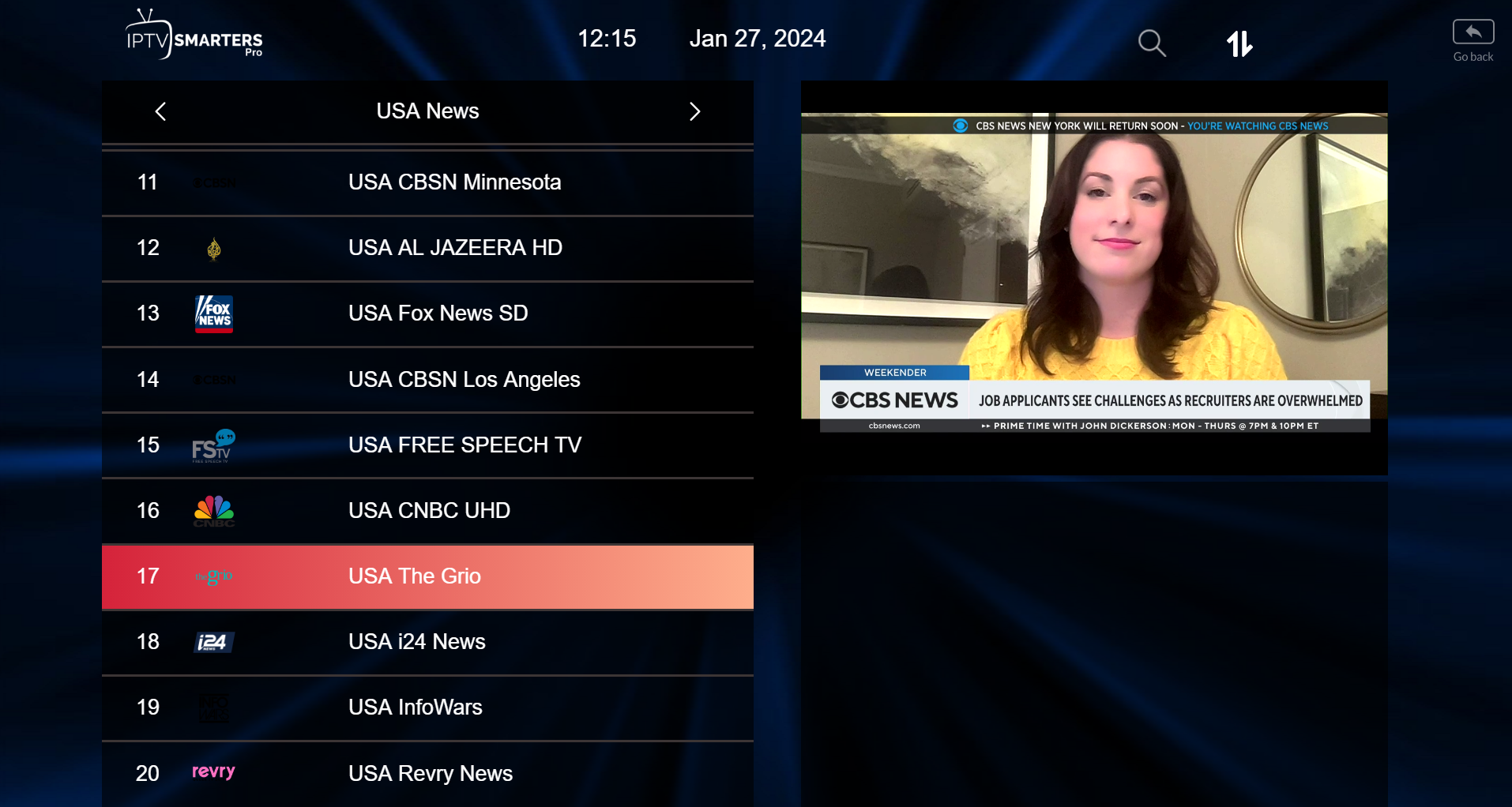
IPTV Smarters full screen player

Setup via M3U Playlist

If you are using an M3U URL instead of an Xtream Codes API, select Login with Playlist.

STEP 1

Select Add User, then choose Login with Playlist.
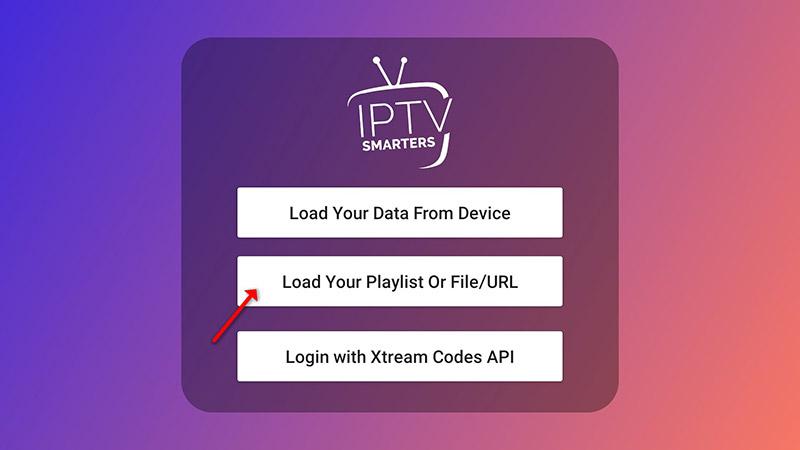
IPTV Smarters playlist login
STEP 2

Enter a profile name, select M3U URL, and enter the playlist URL supplied with your subscription.
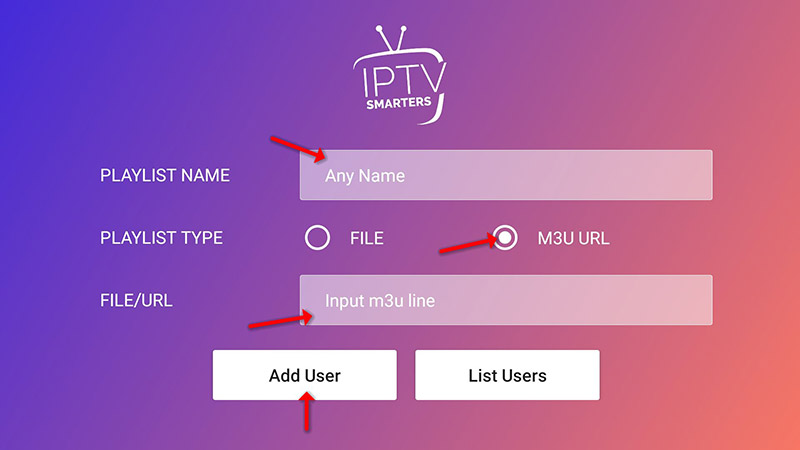
IPTV Smarters M3U playlist setup
FINAL STEP

Open Live TV, select a channel group and choose the channel you want to watch.
Install on Amazon Fire TV Stick

Follow the instructions below to prepare your Fire TV Stick and install the required application.

Before you begin:

Fire TV Stick settings and app availability can vary by device generation and software version. Follow the options shown on your device.

Enable App Installation

STEP 1

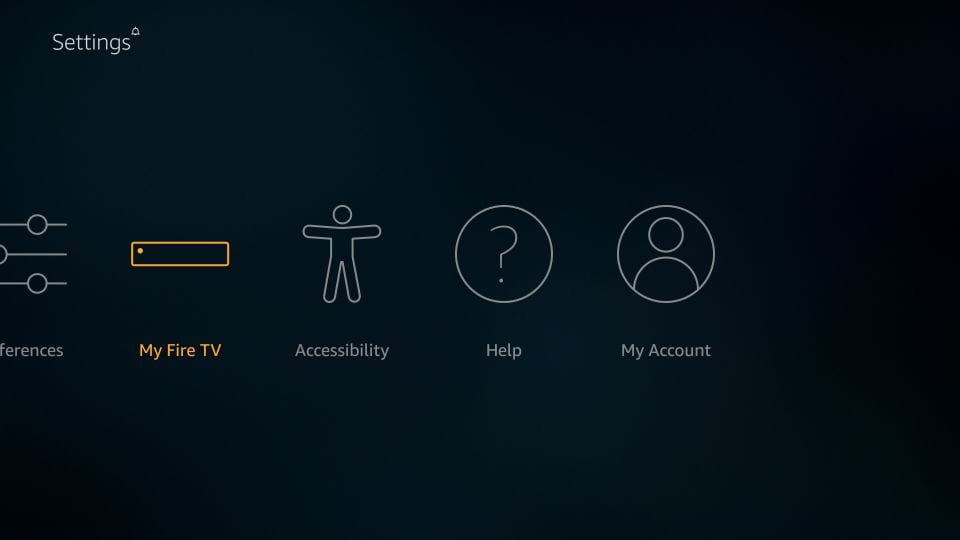
From the Fire TV home screen, open Settings.

Fire TV Stick settings menu
STEP 2

Select My Fire TV.

Fire TV My Fire TV settings
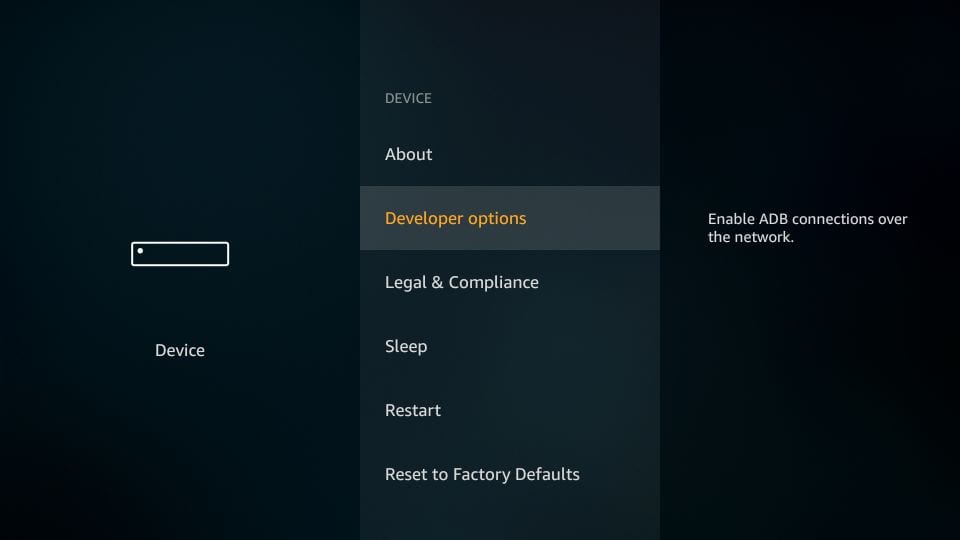
STEP 3

Open Developer Options.

Fire TV Developer Options
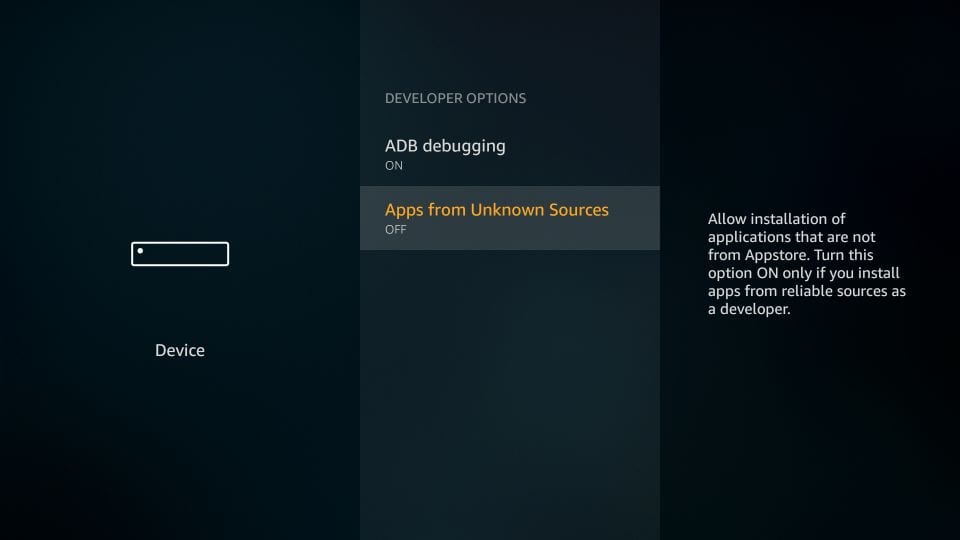
STEP 4

Check the option that allows installation of apps from unknown sources and enable it if required by your device.

Fire TV apps from unknown sources
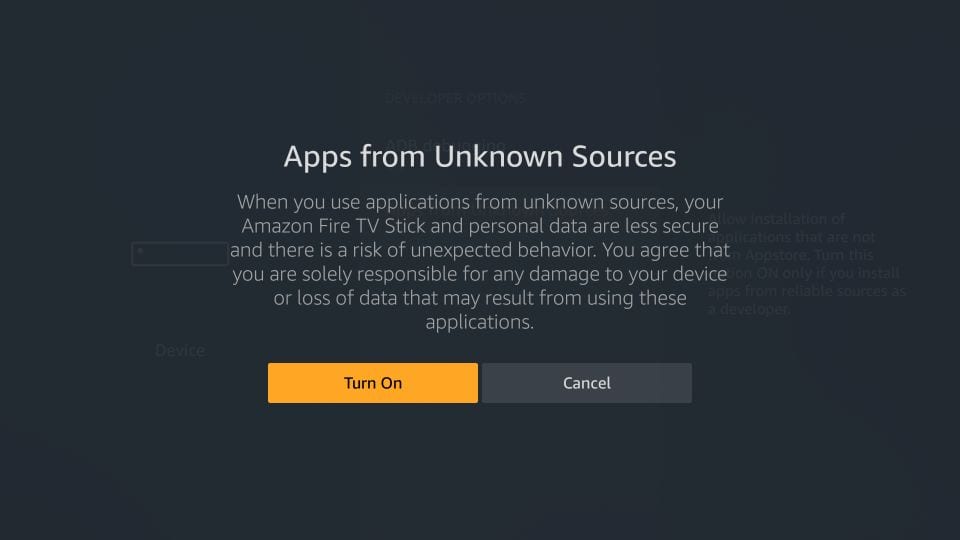
STEP 5

Confirm the setting when the warning message appears.

Fire TV confirmation message

Install Downloader

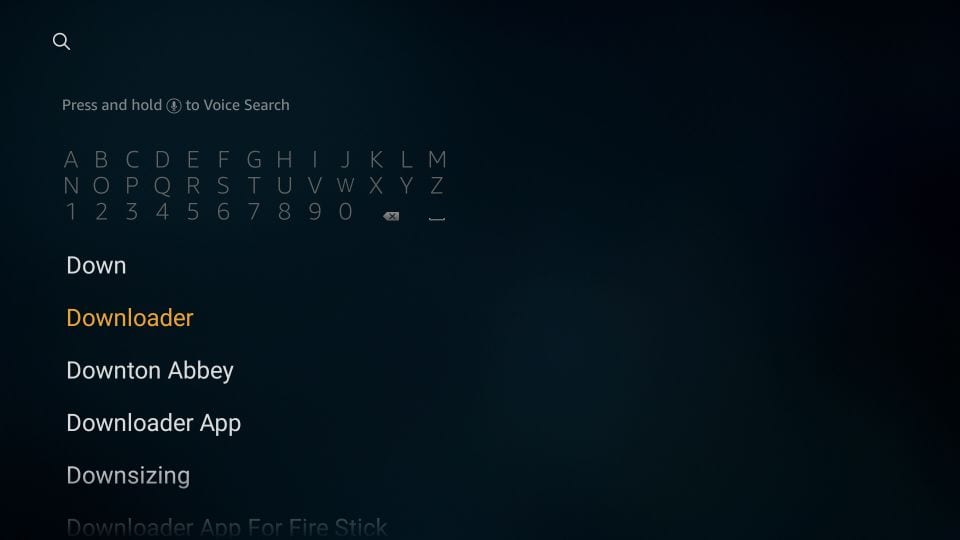
STEP 6

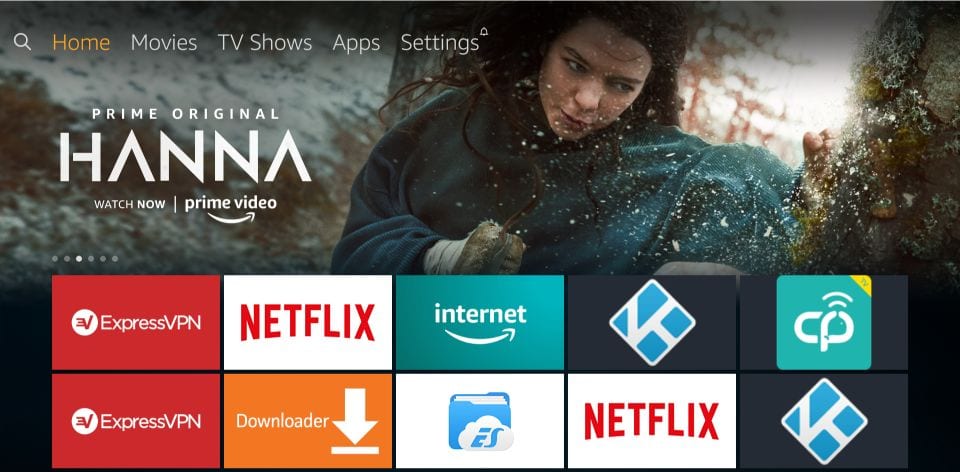
From the Fire TV home screen, use Search and look for Downloader.

Select the official Downloader application and install it.

Downloader app on Fire TV
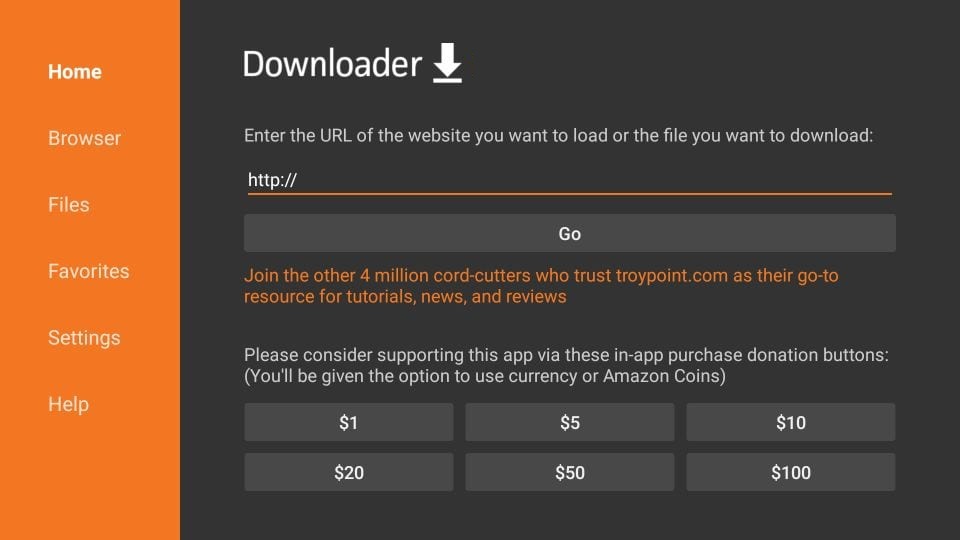
STEP 7

Open Downloader and select its URL field.

Downloader URL field
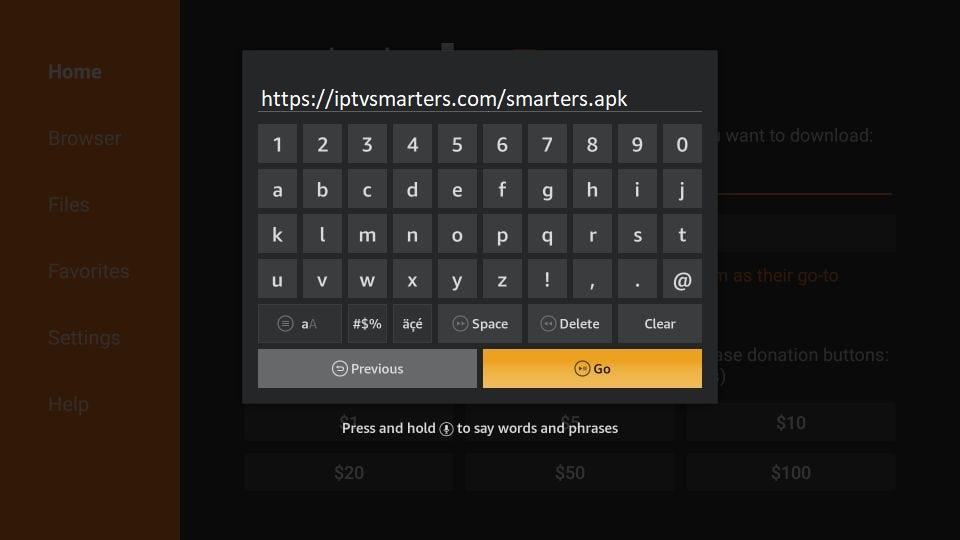
STEP 8

Enter the application download address supplied by the application provider and select GO.

Downloader application URL
STEP 9

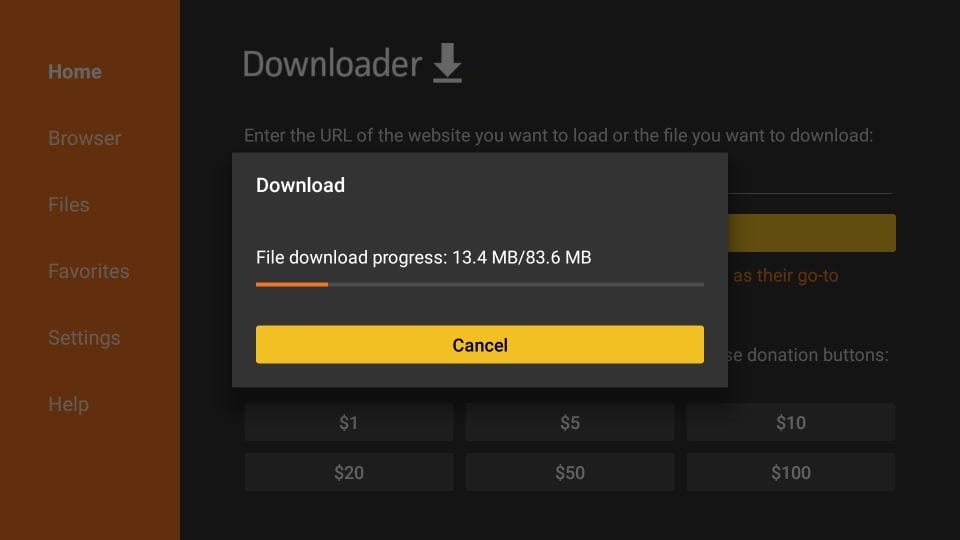
Wait for the application package to finish downloading.

Application download on Fire TV
STEP 10

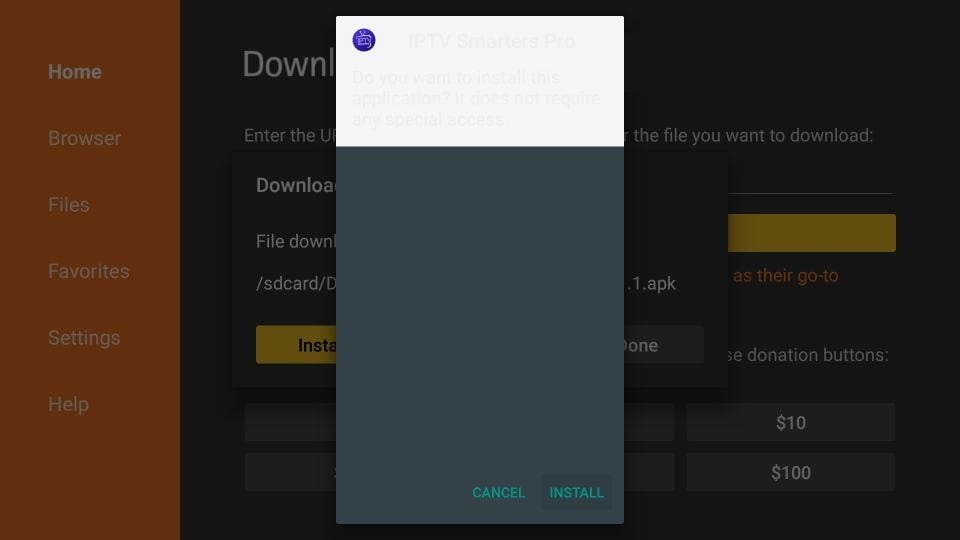
Select Install and wait for the installation to complete.

Fire TV application installation
STEP 11

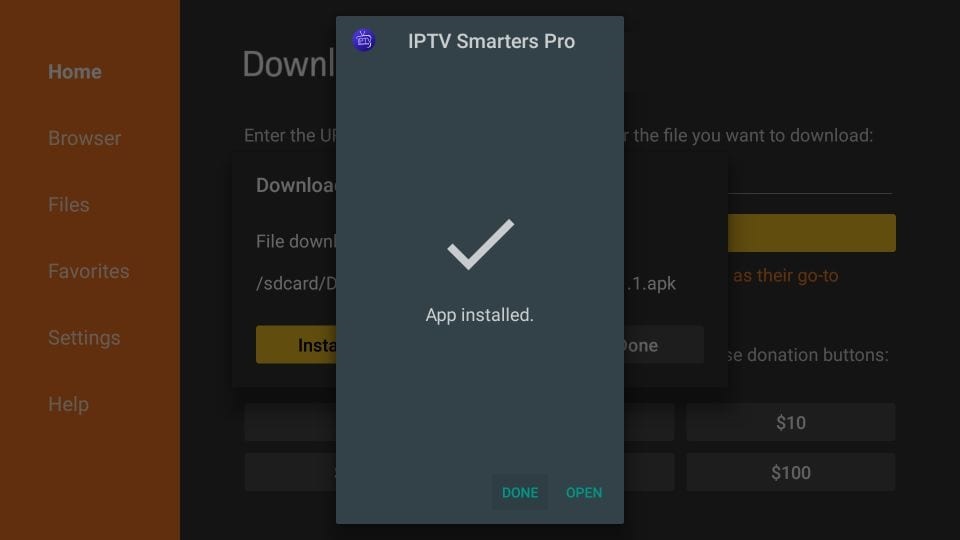
After installation, you can open the application or remove the downloaded installation file to save storage space.

Fire TV application installed

Connect Your Account

Once the application is installed, use the same Xtream Codes API or M3U playlist process described in the Windows and Mac section.

Install on Samsung & LG Smart TVs

Smart TV menus may vary slightly depending on the model and software version.

Samsung Smart TV

STEP 1

Press the Smart Hub button on your remote.

STEP 2

Search for the supported player application and install it.

STEP 3

Open the application and enter your subscription credentials.

LG Smart TV

STEP 1

Press the Home button on your remote and open the LG Content Store.

STEP 2

Search for the supported player application and install it.

STEP 3

Open the application and enter your subscription credentials.

Connect Your Playlist or Account

After opening the application, follow the on-screen instructions to configure your subscription using the credentials or playlist information provided by your service provider.

Install on Formuler Devices

Formuler devices support several configuration methods. The steps below use the MYTV Online application.

Formuler devices can support portal-based and playlist-based configurations depending on the device and application version.

MYTV Online Setup

STEP 1

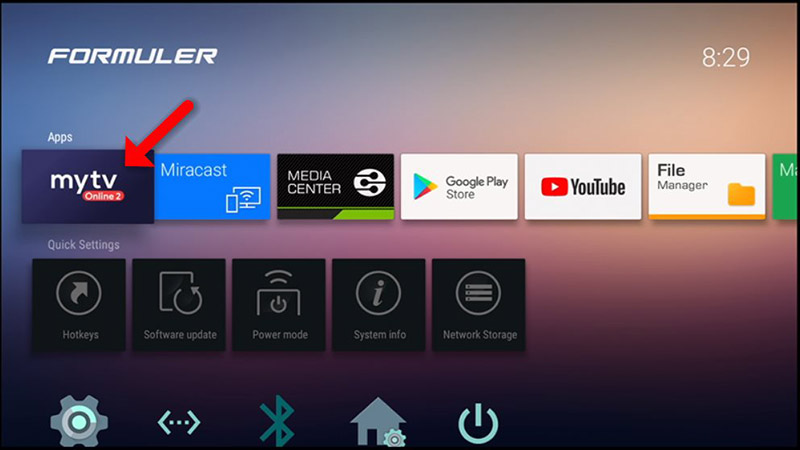
Open MYTV Online 2 on your Formuler device.

If the application is not installed, check the available applications on your device.

Formuler MYTV Online application
STEP 2

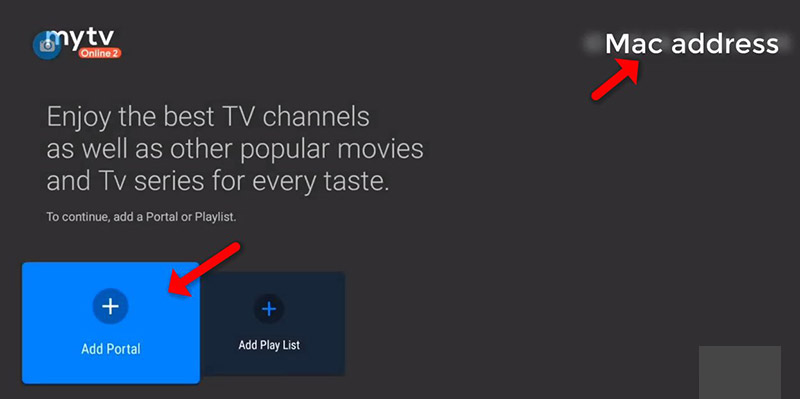
Locate the device's MAC address and provide it to your service provider if your setup requires a portal connection.

Select Add Portal when using a portal-based configuration.

Formuler add portal screen
STEP 3

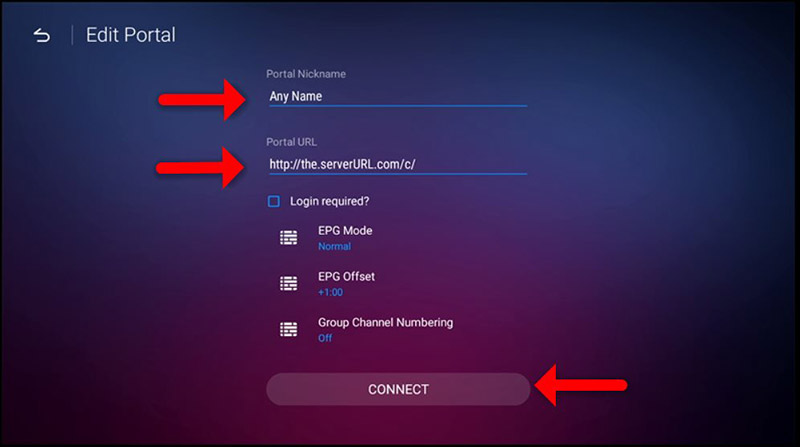
Enter a portal nickname and the portal URL supplied by your service provider.

Select Connect.

Formuler portal URL configuration
STEP 4

After a successful connection, allow the device some time to load the available content associated with your subscription.

Install on Android & iOS

Install the compatible player on your mobile device and then connect using your subscription information.

STEP 1

For Android: Download the Android APK and install the application.

For iOS: Download the compatible player from the App Store .

STEP 2

Open the application and enter the login information supplied with your subscription.

Choose a Setup Method

  1. Xtream Codes API
  2. M3U Playlist

Xtream Codes API

STEP 1

Select Add User, followed by Login with Xtream Codes API.

Mobile IPTV player add user screen
STEP 2

Enter the profile name, username, password and server URL supplied with your account.

Mobile IPTV player login details
STEP 3

Wait for the account information to load.

Mobile IPTV player loading screen
STEP 4

Open Live TV, choose a category and select the channel you want to watch.
Mobile IPTV player Live TV section

M3U Playlist Setup

STEP 1

Select Add User and choose Login with Playlist.

Mobile playlist login screen
STEP 2

Select M3U URL and enter the playlist URL supplied with your account.

Mobile M3U playlist setup
FINAL STEP

Open Live TV, choose your preferred channel group and select a channel.

☏ WhatsApp Support